


The scariest part of switching CRMs is not learning the new one. It is the export: years of contacts, half-finished tags and a stage column that meant something different every year.
Start by exporting a CSV or Excel file from wherever your contacts live now. Most CRMs and every spreadsheet can do that. Then the import wizard walks you through four steps: Upload and Format, Field Mapping, Dropdown Mapping, and Preview and Confirm.
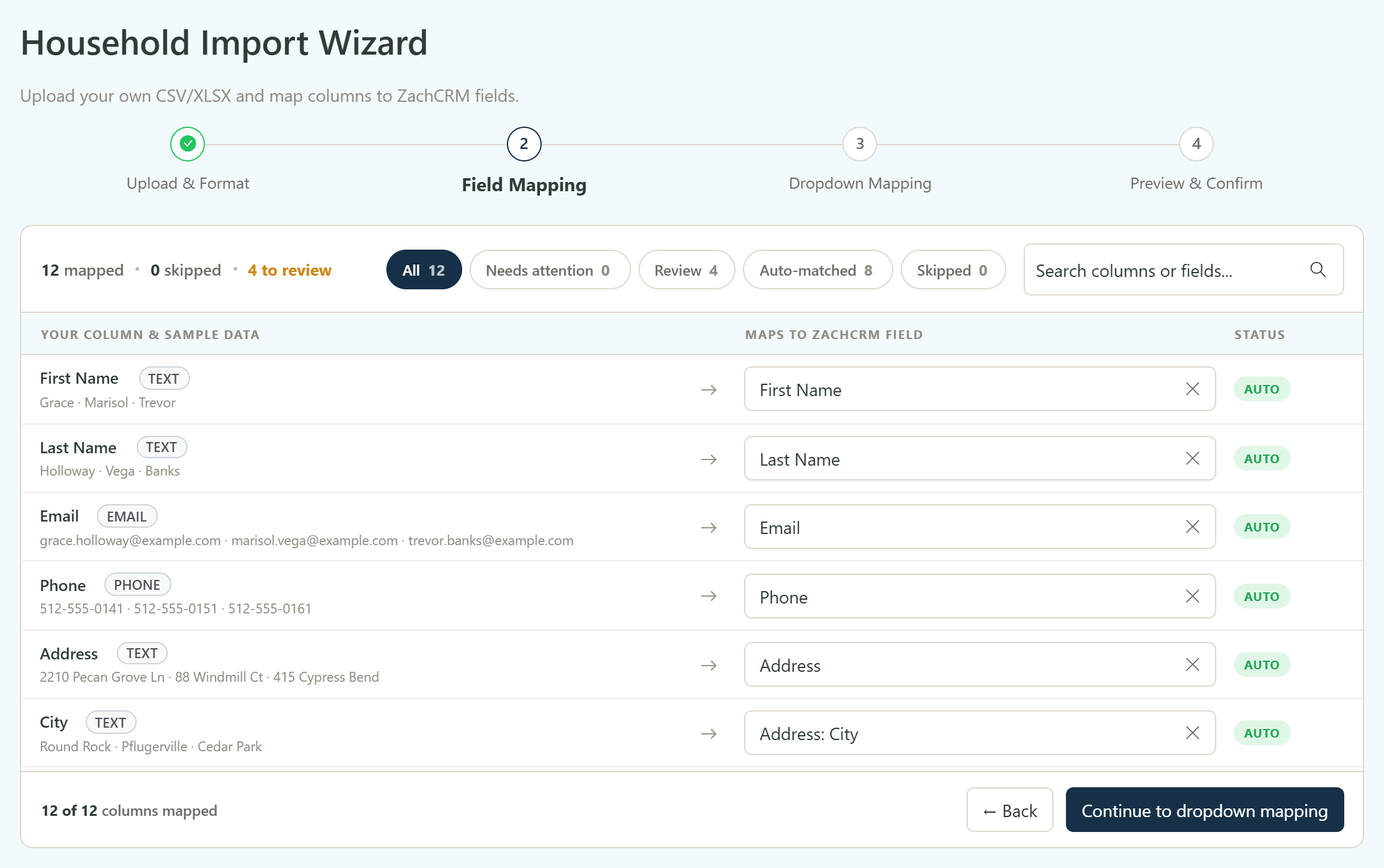
Field mapping does most of the work. The wizard reads your column names and a sample of the data, and matches what it can on its own: names, emails, phones, addresses, birthdays. Anything it is not sure about lands in Review. Those columns default to saving as a journal note, so even an odd column is never thrown away, and one dropdown points it at the right field instead.
Dropdown mapping is where the mess gets cleaned up. Instead of fixing records one by one, you map each value in a column, like your old stages, onto ZachCRM's options once. Couples usually come out of an old CRM as two contacts, and the importer groups them into one household, with each person keeping their own phone, email and birthday.
Preview and Confirm shows you the households before anything is saved. Most agents are through the whole thing in about five minutes.